
A black screen on your Infinix Mobile can be caused by software glitches, hardware issues (e.g., damaged display cables, LCD panels), or compatibility problems with accessories. Key actions include:
1. Update firmware and clear cache/app data for software fixes.
2. Inspect physical damage; a cracked screen may prevent image display.
3. For hardware malfunctions, check charging port connections and consider resoldering.
4. Follow Infinix's troubleshooting guides from the user manual or official support website.
5. Back up data regularly to avoid loss during repairs or replacements.
6. Protect your device with a reputable case and screen protector for longevity.
Infinix Mobile devices are known for their value and reliability, but even the best technology can encounter glitches. If your Infinix phone is displaying a black screen, don’t panic. This issue, while frustrating, is a common problem that many Infinix users face. This article provides a comprehensive guide to troubleshooting and resolving the black screen issue on your Infinix device. We’ll delve into potential causes, from software bugs to hardware problems, and offer step-by-step solutions backed by expertise in Infinix Mobile support.
- Understanding Infinix Mobile Screen Issues
- Common Causes of Black Screen on Infinix Phones
- Diagnosing Hardware vs Software Failures
- Troubleshooting Steps for Infinix Device Owners
- When to Seek Professional Repair or Replacement
- Preventive Measures: Extending Your Infinix Phone's Lifespan
Understanding Infinix Mobile Screen Issues
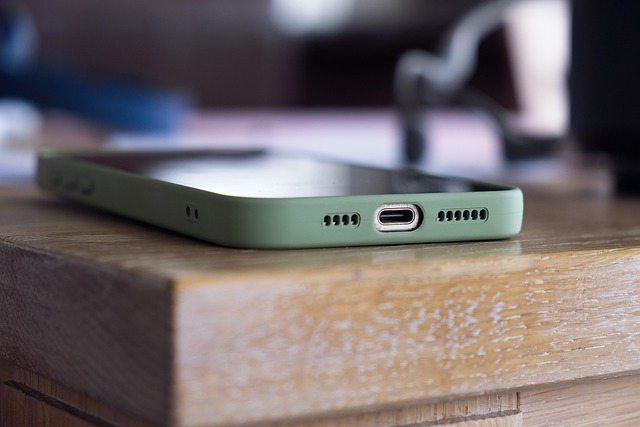
Infinix Mobile devices are known for their robust performance and captivating displays, but like any technology, they can encounter issues, particularly with the screen. A black screen on your Infinix phone can be a frustrating experience, but understanding the underlying causes is the first step to resolving it. This problem could stem from various factors, such as software glitches, hardware malfunctions, or compatibility issues with accessories.
One common reason for an Infinix Mobile’s black screen is a faulty display connection or damaged cables. Since these phones are known for their vibrant and immersive visuals, ensuring optimal cable connections and using official or certified replacements for any repair or replacement is crucial. Additionally, software updates play a vital role in display quality; staying up-to-date with the latest patches can resolve many glitches. Infinix offers regular software updates that enhance overall performance, including improvements to the screen’s responsiveness and brightness.
Maximizing your Infinix display quality involves more than just technical fixes. Using compatible and high-quality accessories is essential. For instance, a protective case designed for your specific model not only adds style but also prevents physical damage that could lead to screen problems. Moreover, investing in a reliable screen protector can safeguard against cracks and scratches while ensuring optimal touch sensitivity. The best accessories for Infinix phones are those designed specifically for their models, ensuring seamless integration and performance.
Understanding the different camera modes on your Infinix device is another way to enhance your overall experience. From portrait mode to night mode, these settings can drastically improve low-light photography. Give us a call at How to Choose the Best Infinix Phone to discuss compatible accessories and explore camera modes that cater to various photography needs. By combining expert insights with user-friendly tips, you can ensure your Infinix Mobile delivers both reliable functionality and stunning visuals.
Common Causes of Black Screen on Infinix Phones

The black screen on your Infinix Mobile can be a frustrating issue, but understanding its common causes is the first step towards unlocking your phone’s potential. Several factors could lead to this problem, ranging from software glitches to hardware failures. One of the most prevalent reasons is a faulty display or cable connection, which can be caused by physical damage or normal wear and tear over time. For instance, a cracked screen or a loose LCD cable might result in an all-black screen, rendering your device unusable without repairs.
Moreover, software-related issues such as system crashes, app conflicts, or outdated firmware can also trigger this error. Infinix customer support channels are readily available to assist users with troubleshooting and offer solutions like reinstalling the operating system or updating to the latest software versions. In some cases, incorrect screen brightness settings or a malware infection might be the culprit, requiring a complete system reset to resolve.
It’s worth noting that improper use of incompatible accessories can contribute to these problems. Using non-genuine or low-quality screens, cables, or chargers might cause damage or instability. To ensure optimal performance and longevity, it is recommended to invest in official Infinix accessories designed specifically for your model. For instance, genuine Infinix chargers and cables enhance battery life and maintain the overall health of your device. Additionally, exploring the best accessories for your Infinix phone can further prevent such issues and enhance your user experience.
If you’ve tried basic troubleshooting and the problem persists, consider reaching out to Infinix camera modes explained by their support team for more advanced assistance. They can guide you through detailed steps or even suggest hardware replacements if necessary. Remember that prompt action can often save your device from more serious damage, so don’t hesitate to seek help when needed.
Diagnosing Hardware vs Software Failures

A black screen on your Infinix Mobile can be a disconcerting issue, but it’s often a symptom of either hardware or software problems. Diagnosing the root cause requires a methodical approach to rule out potential failures. Let’s break down how to navigate this challenge with an expert eye.
For software-related issues, updating your device’s firmware is often a first step. Infinix Mobile releases regular updates that can fix bugs and restore functionality. Additionally, clearing cache and app data can resolve compatibility problems caused by corrupt applications. If these solutions don’t work, it could point to a deeper hardware malfunction. For instance, a faulty display cable or damaged LCD panel are potential culprits, especially if the black screen occurs suddenly with no history of physical damage.
Hardware failures often manifest as persistent issues that aren’t resolved by software fixes. In such cases, examining your device’s charging port for loose connections can be a good starting point. Incorrect connections here can prevent power from reaching the display. If you’re comfortable, attempting a simple DIY repair to resolder the port could resolve the issue. However, for more complex hardware problems like a damaged internal component, it’s advisable to consult a professional or reach out to Infinix Mobile support. They offer tailored assistance and may guide you through processes like transferring data to a new Infinix device or even introducing you to an intro to Infinix phone modding for advanced users.
Remember that proper diagnosis is key to effective troubleshooting. If your black screen persists, consider the age of your device. Older models might require replacement parts, whereas newer Infinix devices may benefit from official warranty service. In any case, if DIY repairs aren’t your forte, give us a call at Root Access on Infinix devices for expert guidance tailored to your specific model.
Troubleshooting Steps for Infinix Device Owners

If your Infinix Mobile is displaying a black screen, don’t panic. There are several troubleshooting steps you can take to get it up and running again. First, check if the device is in sleep mode or if the power button has been stuck—a common issue with any smartphone. A simple reset might do the trick, but if this doesn’t work, try a force restart by pressing and holding both the power and volume down buttons simultaneously until the screen lights up.
For more persistent black screens, an Infinix Cloud Backup could be helpful. Regularly backing up your data ensures you don’t lose important files if something goes wrong. Visit us at [Infinix privacy settings: protecting your data anytime] to learn about securing your information. Additionally, consider checking the display for physical damage; a cracked screen will obviously prevent any image from being displayed.
If it’s a software issue, updating your device’s operating system could resolve the problem. Ensure you’re running the latest version available for your Infinix model. You can check and install updates in your phone settings. It’s also worth exploring whether an app is causing the issue; try closing all apps and then restart your phone. Some third-party applications might interfere with system functions, especially if they require extensive permissions.
For more advanced troubleshooting, DIY phone repair is an option for simple issues like screen replacement, but be cautious as improper repairs can cause further damage. If you’re not comfortable doing it yourself, professional services are readily available. When selecting a repair center, opt for one that specializes in Infinix devices and has positive reviews to ensure quality service. Remember, the best accessories for Infinix phones—like protective cases and screens—can also prevent future damage and enhance your overall experience.
When to Seek Professional Repair or Replacement

If your Infinix Mobile phone is displaying a black screen, it can be frustrating but don’t panic. There are several steps you can take to troubleshoot the issue before considering professional repair or replacement. The first step is to check if the problem persists across all apps and functions. A temporary software glitch might be to blame in such cases; a simple restart often resolves these minor hiccups. However, if the black screen remains even after restarting, it could indicate a hardware fault.
Infinix offers comprehensive support through their user manual: step-by-step guide, which can assist with various issues, including display problems. Before contacting official Infinix support, ensure you’ve explored these resources. For instance, the manual provides insights into creating custom ringtones, an activity that might indirectly help identify if your phone’s settings are functioning correctly. Additionally, understanding the infinix security features explained in the manual can sometimes be relevant when troubleshooting, as it ensures your device and data remain protected during the diagnostic process.
If the issue persists and you’ve ruled out software-related causes, a potential hardware malfunction warrants professional attention. This is especially true if your phone is still under warranty. Infinix is known for its reliable products, but like any electronic device, they can experience wear and tear over time. In such cases, seeking official repair services is recommended to avoid further damage or safety risks. For example, an experienced technician will know how to address issues with the display panel, battery connections, or other internal components that could be causing the black screen.
While creating custom ringtones, exploring security features, and following the user manual: step-by-step guide can help, remember that professional repair or replacement is a crucial step when dealing with hardware failures. Find us at infinix official website for more support options and to ensure your Infinix Mobile device receives the care it deserves.
Preventive Measures: Extending Your Infinix Phone's Lifespan

Your Infinix phone turning on but displaying a black screen can be frustrating. While it might seem like an end to your device’s lifespan, there are several preventative measures you can take to extend its use and avoid such scenarios in the future.
One of the primary culprits could be a faulty display or power-related issues. Regularly updating your Infinix Mobile software is crucial; these updates often include bug fixes and security patches that improve device stability. Ensure you’re running the latest version, as outdated software can lead to unpredictable behavior. Additionally, optimizing Infinix storage space by deleting unused apps and files reduces potential strain on system resources, preventing unexpected shutdowns or black screens.
Transferring data to a new Infinix device is another strategic move for longevity. Regular backups ensure that essential information like contacts, photos, and documents remain accessible even if your current phone experiences persistent technical difficulties. Furthermore, when setting up the new device, make sure to reconfigure email accounts to avoid any data loss or disruption in communication.
Another practical approach is to be mindful of power usage. Extreme heat or cold can negatively impact battery health, so keeping your Infinix phone in moderate environments and using a reputable case and screen protector can help. Lastly, giving us a call at our support line for personalized assistance regarding any specific issues is always an option. Remember, proactive measures like these will not only extend the lifespan of your Infinix Mobile but also ensure optimal performance over time.
Through a comprehensive exploration of Infinix Mobile’s screen issues, this article has equipped readers with invaluable insights into troubleshooting common causes behind the black screen phenomenon on Infinix phones. By distinguishing hardware from software failures and offering detailed steps for self-diagnosis and resolution, it empowers device owners to take proactive measures. Recognizing when professional repair or replacement is necessary is also a crucial takeaway, emphasizing the importance of timely intervention to prevent further damage. Moreover, the article underscores the significance of preventive care, providing guidance on extending the lifespan of Infinix Mobile devices through informed practices. Armed with this knowledge, users can confidently navigate potential challenges and maintain their Infinix phones in optimal condition.
